


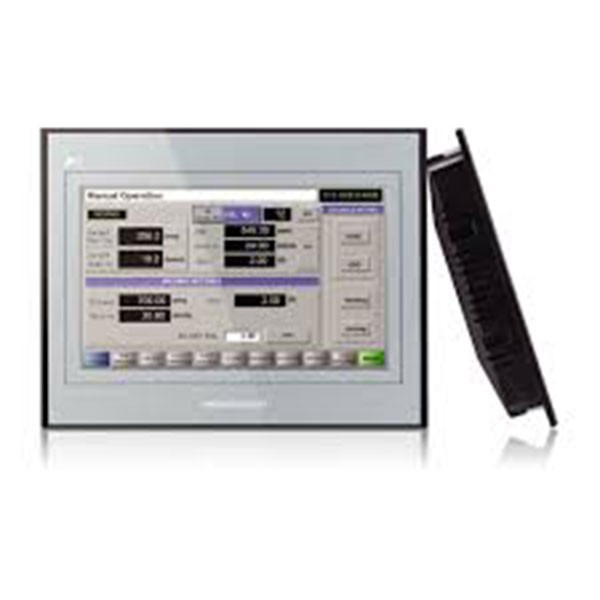
Touch Screen Weinview hmi TK6102i Easy installation and Programming
(0
reviews)
Sold by:
Inhouse product
Inhouse product
Price:
৳1.00
/Pcs
Share:
Top Selling Products

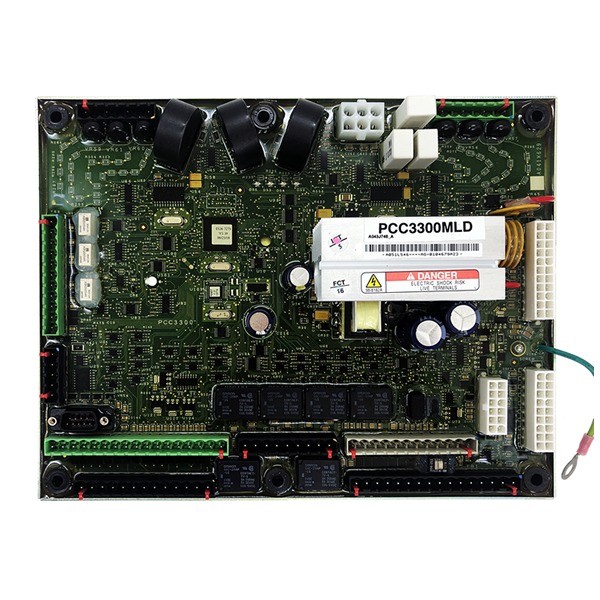
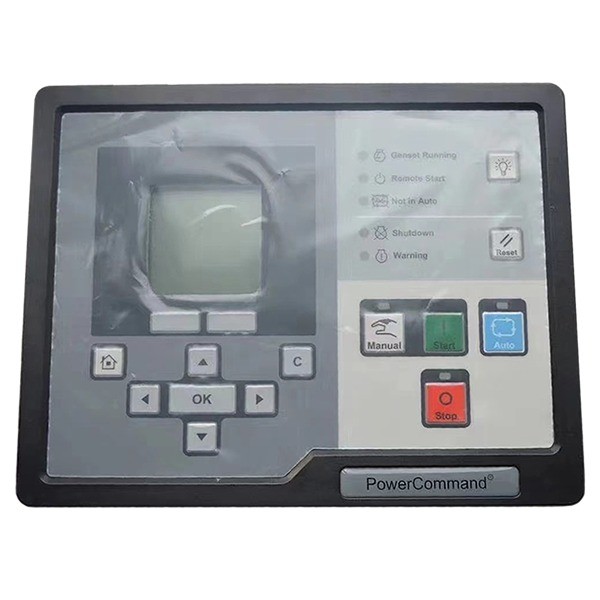
Touch Screen Weinview hmiTK6102i
MT8000iE, MT8050iE, MT6070iE, MT6071iE, MT8071iE, MT8070iER ,MT8070iE, MT8100iE, MT8121iE, MT8150iE, MT8000i. Weinview HMI (Human-Machine Interface) devices, such as the TK6102i, are known for their ease of installation and programming. Here’s a comprehensive guide on how to install and program the Weinview TK6102i
Installation & Setup
- Unpacking and Inspection:
- Carefully unbox the HMI and inspect it for any physical damage.
- Ensure you have all the necessary accessories like mounting brackets and screws.
- Power Connection:
- Connect the power supply to the HMI. Ensure the power source matches the voltage requirements specified in the manual (typically 24V DC for the TK6102i).
- Double-check the connections to prevent short circuits.
- Communication Connection:
- Connect the HMI to your PLC or other control devices. This can be done via RS232, RS485, or Ethernet, depending on your setup.
- Ensure proper connection and termination to avoid communication issues.
Programming & Installation:
- Download and Install EasyBuilder Pro:
- Visit the official website of Weinview or the distributor to download the EasyBuilder Pro software.
- Install the software on your computer following the on-screen instructions.
- Setting Up Communication:
- Go to the “Device/PLC” settings to configure the communication parameters.
- Select the appropriate communication protocol and configure the settings to match your PLC or control device.
- Creating Tags and Addresses:
- Define tags that correspond to the memory addresses in your PLC.
- Map these tags to the various HMI elements (e.g., linking a button to a specific output).
- Programming Logic:
- Use macros or scripts if needed to implement more complex logic or calculations.
- Test your logic within the simulation mode of EasyBuilder Pro to ensure it works as intended.
- Downloading the Project:
- Once the design and programming are complete, connect your computer to the HMI using a USB cable or via the network.
- Use the “Download” function in EasyBuilder Pro to transfer the project to the HMI.
There have been no reviews for this product yet.
Related products


Signup For Newsletter
we'll never share your email address with a third-party
Be A Seller
Apply NowContact US
- Address: Elite House (6th floor),54, Motijheel C/A, Dhaka 1000.
- Phone: +8801737-042829
- Email: info@sellcobd.com


