


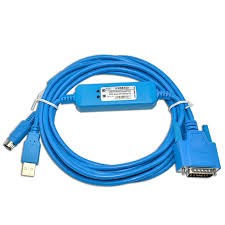
Panasonic USB-8550 FP1/FP3/FP5 PLC Programming cable
(0
reviews)
Sold by:
Inhouse product
Inhouse product

Price:
৳1.00
/Pcs
Share:
Top Selling Products

Panasonic usb-8550-plc-Programming cable. The USB8550 USB-8550 cable USB to RS422 all adapter for Nais/Panasonic FP1/FP3/FP5 PLC
The Panasonic USB-8550 cable is used for programming and communication with Panasonic FP1, FP3, and FP5 series PLCs. This cable allows you to connect a PC or programming device to the PLC for tasks such as program uploading, downloading, monitoring, and troubleshooting. Here’s a breakdown of how to use this cable with Panasonic PLCs:
Components Needed:
- Panasonic USB-8550 Programming Cable: This is the USB-to-serial programming cable specifically designed for Panasonic FP1, FP3, and FP5 PLCs.
- Panasonic PLC Software: You’ll need the appropriate programming software for your specific PLC series (FP1, FP3, or FP5). This software is used to write programs, configure settings, and communicate with the PLC.
Steps to Use the USB-8550 Programming Cable:
- Connect the Cable:
- Plug the USB end of the USB-8550 cable into a USB port on your PC.
- Connect the other end (serial connector) of the cable to the programming port on your Panasonic PLC (usually labeled “RS232” or “RS485”).
- Install USB Drivers (if necessary):
- If your PC does not automatically recognize the USB-8550 cable, you may need to install the USB drivers provided by Panasonic. Refer to the cable’s documentation or Panasonic’s support website for the appropriate drivers.
- Launch PLC Programming Software:
- Open the programming software (e.g., FPWIN Pro for FP series PLCs) on your PC.
- Configure Communication Settings:
- In the programming software, configure the communication settings to match your PLC and the USB-8550 cable. This typically involves selecting the correct COM port (to which the cable is connected) and setting the communication parameters (baud rate, parity, data bits, stop bits).
- Establish Communication:
- Once the settings are configured, establish communication with the PLC by initiating a connection from the software to the PLC.
- This may involve options such as “Online” or “Connect” within the programming software interface.
- Program Upload/Download:
- With a successful connection established, you can now upload existing programs from the PLC to your PC for backup or modification.
- You can also download new or modified programs from your PC to the PLC.
- Monitor and Test:
- Use the programming software to monitor PLC status, variables, and I/O signals.
- Test the PLC program by running simulations or downloading the program to the PLC and observing its behavior.
Tips for Successful Programming:
- Ensure the cable is securely connected to both the PC and the PLC.
- Double-check communication settings (COM port, baud rate, etc.) to match the PLC and cable specifications.
- Keep the programming software and USB drivers up to date with the latest versions available from Panasonic’s official sources.
- Refer to the specific manuals and documentation provided with the USB-8550 cable and your Panasonic PLC series for detailed instructions and troubleshooting guidance.
There have been no reviews for this product yet.
Related products



Signup For Newsletter
we'll never share your email address with a third-party
Be A Seller
Apply NowContact US
- Address: Elite House (6th floor),54, Motijheel C/A, Dhaka 1000.
- Phone: +8801737-042829
- Email: info@sellcobd.com


